 Hockey Hub
YOUTUBE GAME REVIEW
How to save hockey coaching moments from a YouTube game
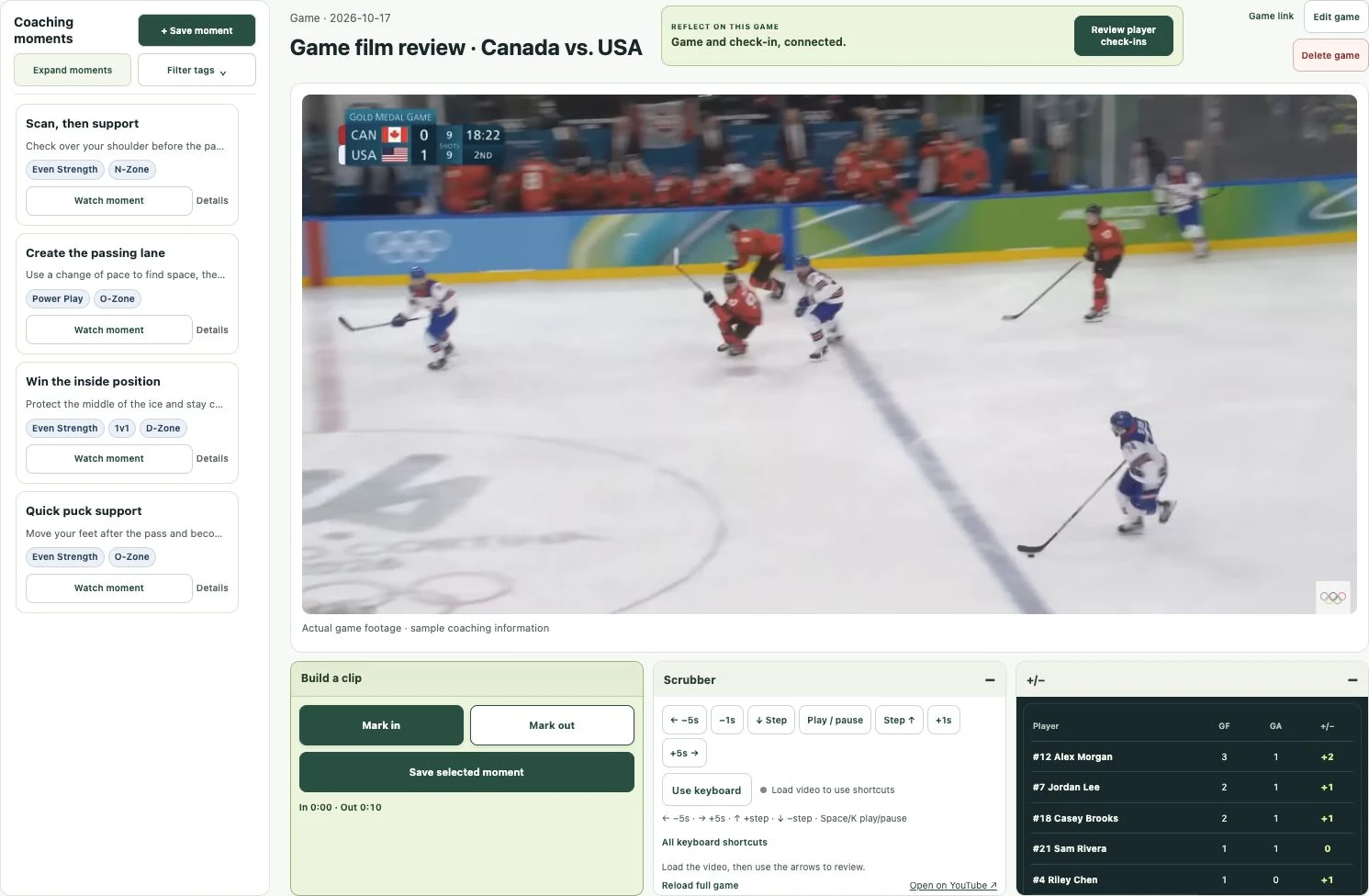
In Hockey Hub, a coaching clip is a saved start-and-end time range linked to a YouTube game. It helps your players jump back to a play with the coach’s context while the footage stays hosted on YouTube.
Check the source before preparing the review
Use a video you have permission to review and share, and confirm that YouTube allows it to embed and that the intended players can play it. A public link and an unlisted link may both be usable when the owner’s settings permit playback. A private, age-restricted, region-restricted or embedding-disabled video may not play for every viewer.
An unlisted YouTube link can still be forwarded outside Hockey Hub. Choosing a private audience for your coaching notes controls access to the Hockey Hub moment; it does not change the underlying YouTube owner’s visibility settings. Avoid putting sensitive personal details in the public title or description of the source video.
Mark and save the time range
- Open Game Center, choose the correct team and game, and connect its YouTube URL.
- Find the decision you want to discuss. Include enough lead-in to show what the player could see.
- Tap Mark In at the beginning. Move to the end of the relevant sequence and tap Mark Out.
- Choose Save selected moment. Give it a title that describes the situation rather than only “good play” or “mistake.”
- Add one coaching note and a question. Choose a focus topic if it is useful for the linked check-in.
- Choose situation tags, players on the ice and the viewing audience, then save.
Use the playback controls deliberately
The on-screen buttons work alongside the keyboard controls. Left and right jump back or forward five seconds; up and down move by the selected step; I and O mark the range. Focus inside YouTube or a text field can affect keyboard handling, so use the visible controls whenever needed.
Step seeking is approximate playback navigation, not frame-accurate video editing. If the start point hides an important scan, give the clip a little more lead-in. If the sequence needs a different moment, create another saved range rather than forcing unrelated plays into one clip.
Keep player tags and viewing audiences separate
Players on the ice records who was involved in the moment. It helps a coach filter that game by a player, and helps a player find visible tagged moments through My clips. A player tag is not permission to view a private clip.
The audience controls whether the moment is shared with the whole team or selected players. For an individual review, select the intended player audience as well as any on-ice tags. Assistants with accepted coaching access can help prepare and review their team’s moments.
| Control | Purpose | Example |
|---|---|---|
| Situation tags | Describe the play and combine filters. | Power Play + O-Zone. |
| Players on the ice | Record the players involved. | Tag the five skaters involved in the sequence. |
| Viewing audience | Control who can see the coaching moment. | Whole team or selected players. |
| Focus topic | Connect the moment to a development question. | Scanning & awareness. |
Troubleshoot a moment that will not play
First open the original YouTube link while signed out or in the same viewing context as the player. Check whether the video was deleted, changed to private or blocked from embedding. Then confirm the saved moment still points to the intended game source.
A Hockey Hub clip does not create a separate copy of the footage. If the YouTube source becomes unavailable, its saved time range cannot restore the video. Keep your game and moment titles specific so the coaching record remains understandable even if the source changes.
Know when you need a full video editor
Use Hockey Hub when the job is to revisit a play, add a note, share it with players and connect the review to a check-in. Use a separate editing tool when you need to render a highlight reel, export an MP4, combine footage from different cameras or add graphic effects to a new video.
This distinction matters when comparing hockey video clipping software. Saved coaching moments make replay and feedback convenient; they are not downloadable highlight files or automatic shift detection.